Importing Data
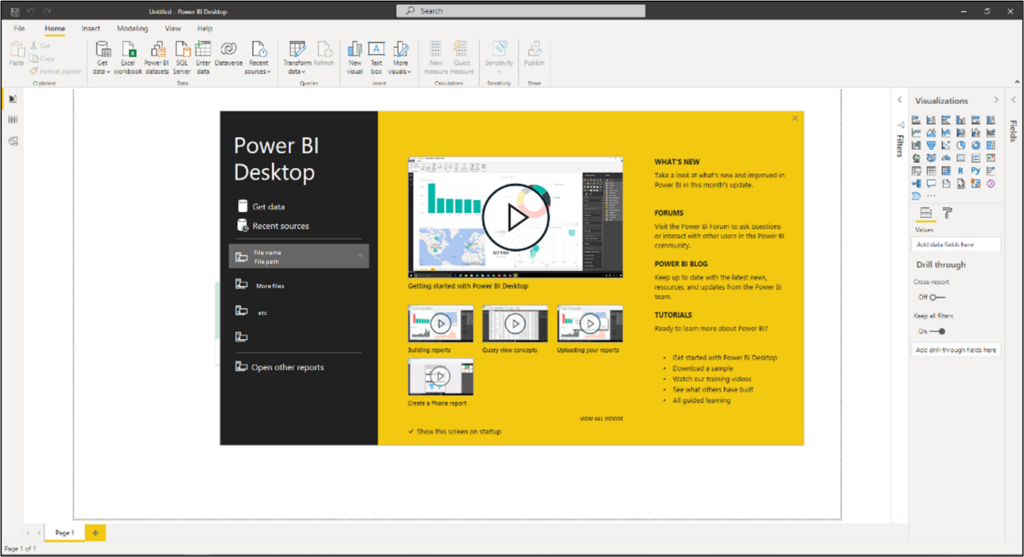
When first opening PBI you will be greeted with this screen. You can select recent files to open on the left, or choose “Get Data” to import new data and start a new file.
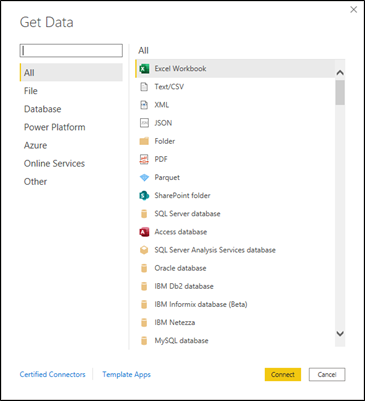
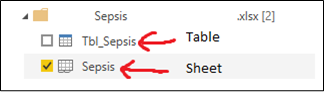
For importing Excel data, you will be prompted to select sheets or tables after selecting the .xlsx file. If your Excel file has formatted tables, each table shows up as a selectable option independent of the sheet it’s in. Be aware that selecting both a sheet and a table within the sheet can create duplicate data sets in PBI and may cause confusion later.
You can choose to immediately load the data, or transform the data first. Loading the data immediately allows you to start making visuals with it, and Transform Data brings up the Power Query Editor.

For a more detailed explanation around loading/transforming data, see “Lab 1 — Accessing and Preparing Data A4.pdf” from Microsoft’s Dashboard in a Day workshop.
M vs DAX
Power BI has two languages that are used to set up and manipulate data. It seems like DAX is used everywhere, except for the Power Query Editor. The Query Editor uses M (quick tour, overview).